If you have received a coupon/discount code for your subscription that you would like to apply to the automatic renewal in order to pay less for the renewal, you must follow these steps to assign it to your subscription.
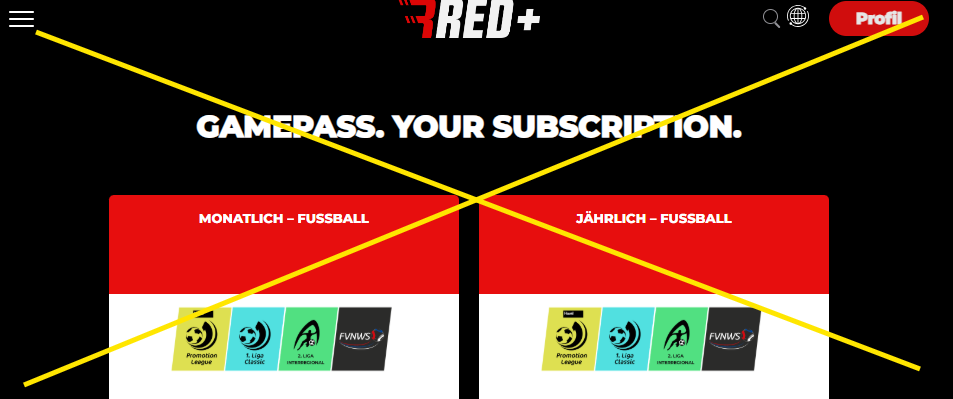
Please note that you do NOT need to purchase a new subscription if you already have a current subscription, but must assign the code directly to your current subscription. If you have landed on the following page, you have unfortunately taken a wrong turn!
WRONG PAGE:
CORRECT PAGE:
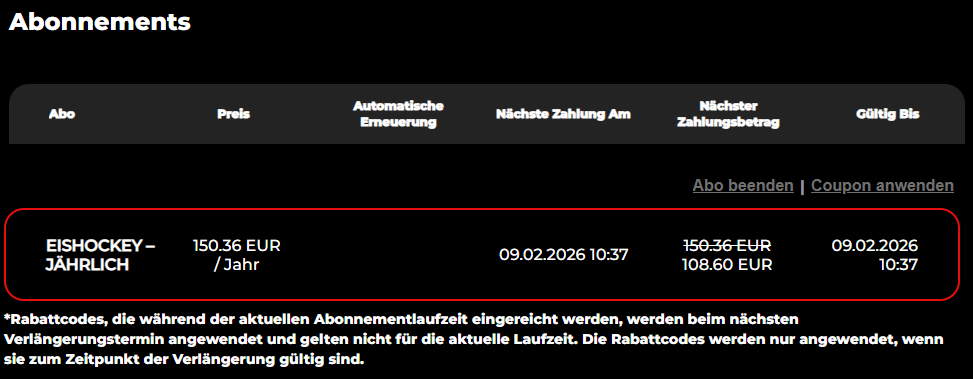
Below, we explain step by step how you can enter a discount code you have received:
- Go to red.sport
- Log in to your account (if you are already logged in, skip this step) PC: red “Log in” button at the top right
- Mobile: red “Log in” button at the end of the menu
- Open your profile
- PC: red “Profile” button at the top right
- Mobile: red “Profile” button at the end of the menu
- Click on GAMEPASS in the submenu in your profile
(On mobile devices, this menu is displayed horizontally at the top of the page. Do not use the “burger menu” with the three lines. - There you will see your completed subscriptions! (
If you are on the page where all available subscriptions are displayed, you are on the wrong page!) - On the far right, you can click on the “Apply coupon” button.
- Now you can enter your coupon code and click on “Apply.”
- A green text will indicate that the coupon has been saved. If you refresh the page, a discount will be displayed for your subscription.
- The saved discount will now be automatically applied to your next renewal.